
Voices
Browse the Aivah voice library and clone your own voice
The Voices page (Side nav → Customization → Voices, or /avatars/voices) lists every voice your account can use – both Aivah's built-in library and the private voice clones you upload.
Voices are the speech engine for:
- The chat composer (Playground)
- The avatar in Avatar chat
- Telephony calls (see Twilio Phone Setup)
- Channel responses where audio is supported
What you see
- A grid of voice cards. Each card includes:
- Voice name
- Provider / model family (so you know which LLMs it pairs with)
- Playback controls to preview the voice
- A Set as default action
- A Create button (top-right) for adding a new voice clone.
- Search and pagination across the full library.
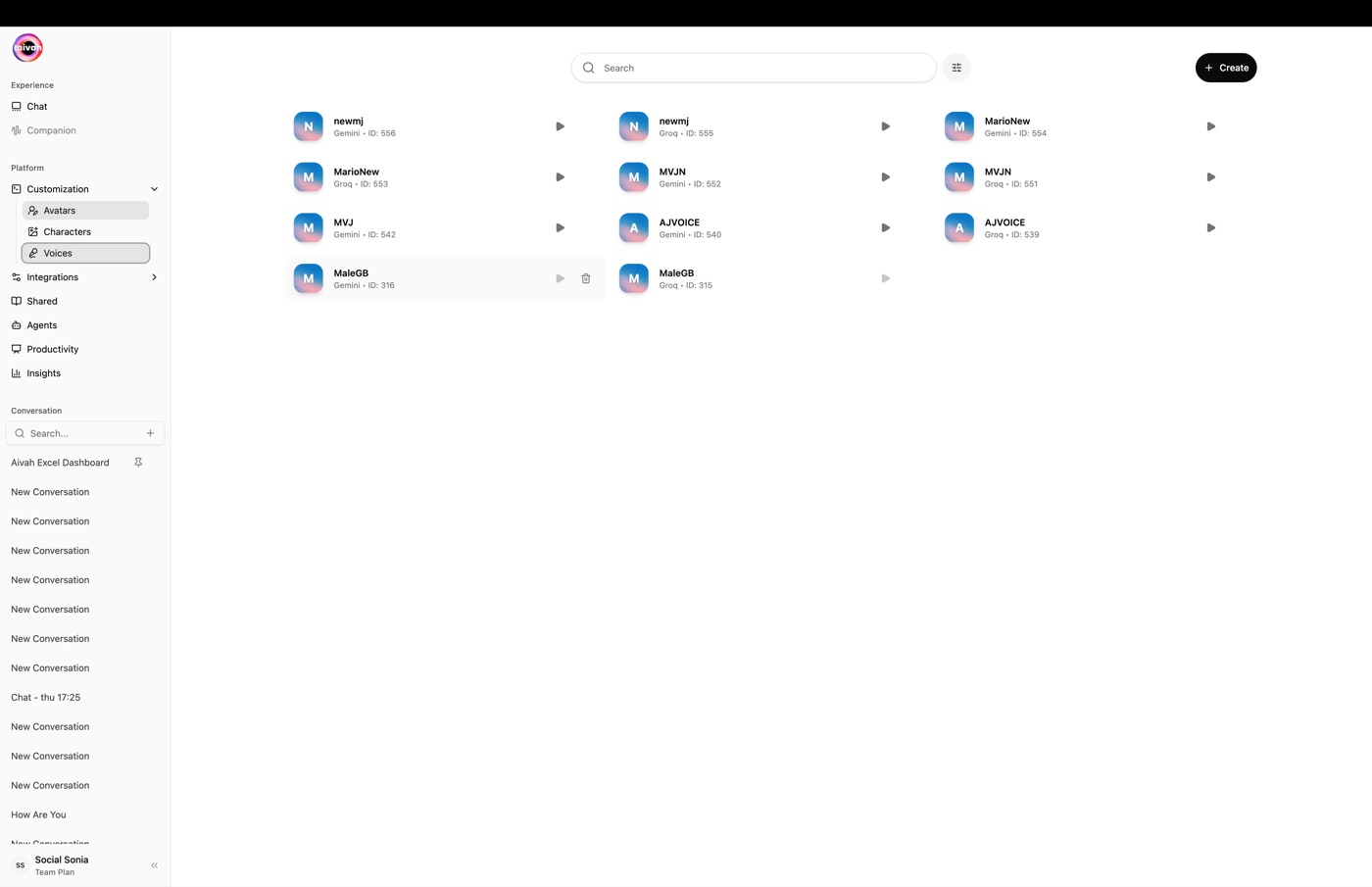
Switching the LLM provider in the chat composer may filter the available voice list. For example, Gemini voices appear when a Gemini model is active, and OpenAI Realtime voices appear when an OpenAI Realtime model is active.
Clone a voice
- Click Create
Press + Create in the header. The Add voice dialog opens.
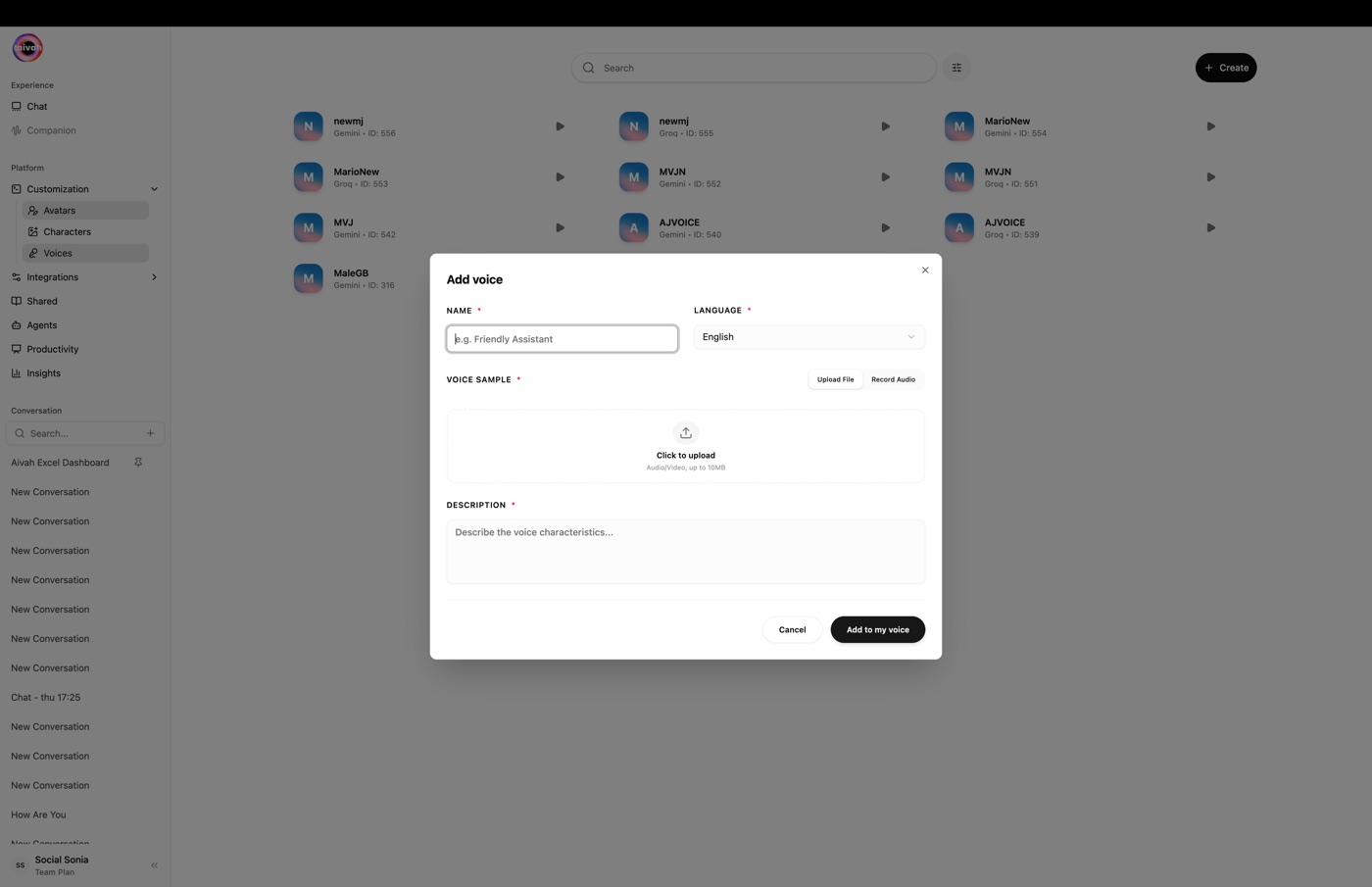
Add voice modal – Name, Language, Voice Sample, and Description - Pick the language
Select the language the voice will primarily speak (English, French, German, Spanish, Portuguese, etc.).
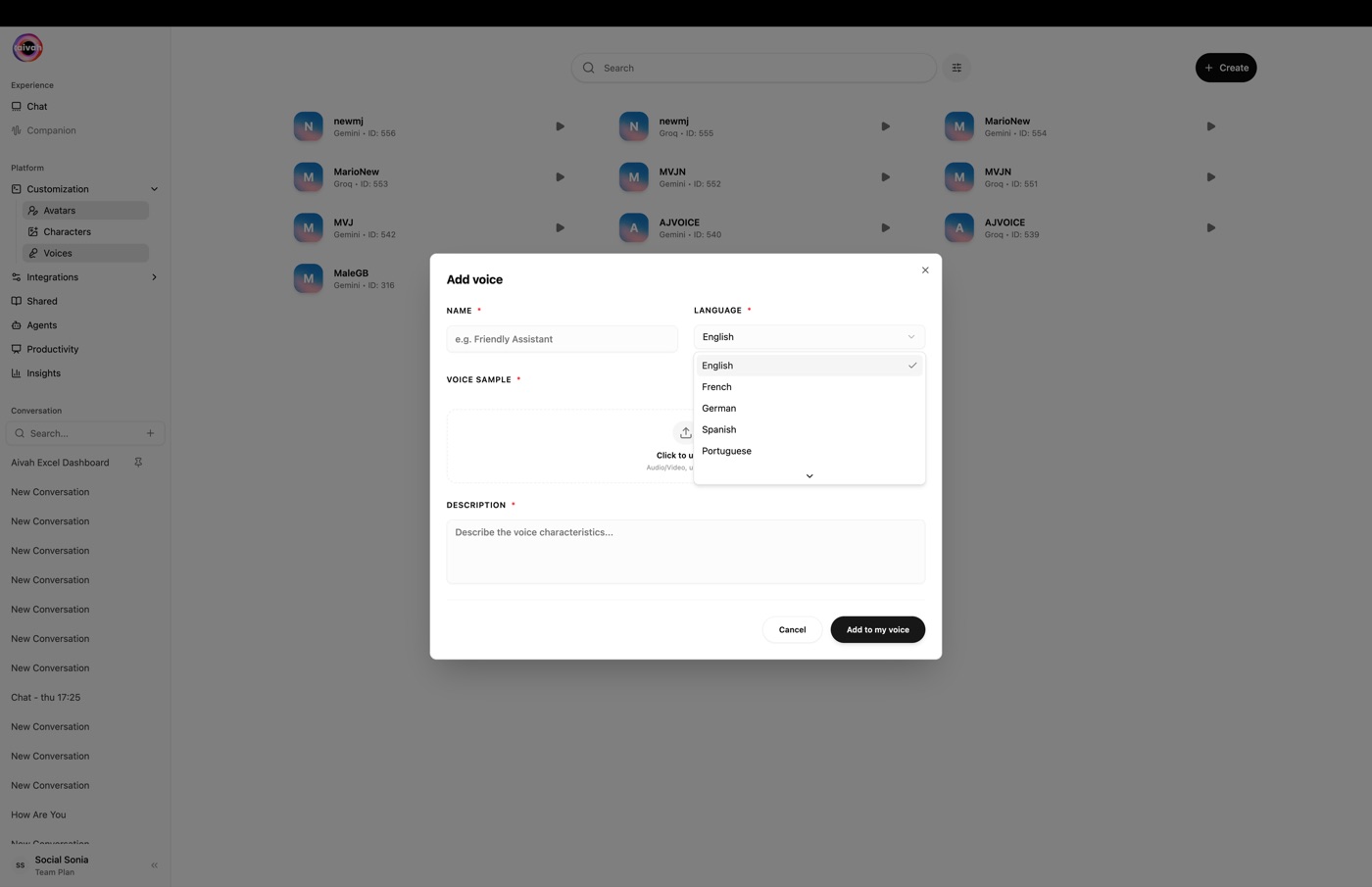
Language picker in the Add voice modal - Upload a clean reference recording – or record one
You can either Upload File (a short, mono audio file up to 10 MB) or Record Audio directly in the browser (up to 1 minute). For best results:
- Keep the recording free of background noise, music, or other voices
- Aim for natural pacing – read a short paragraph rather than a single sentence
- Use a quality microphone and the highest-fidelity export available
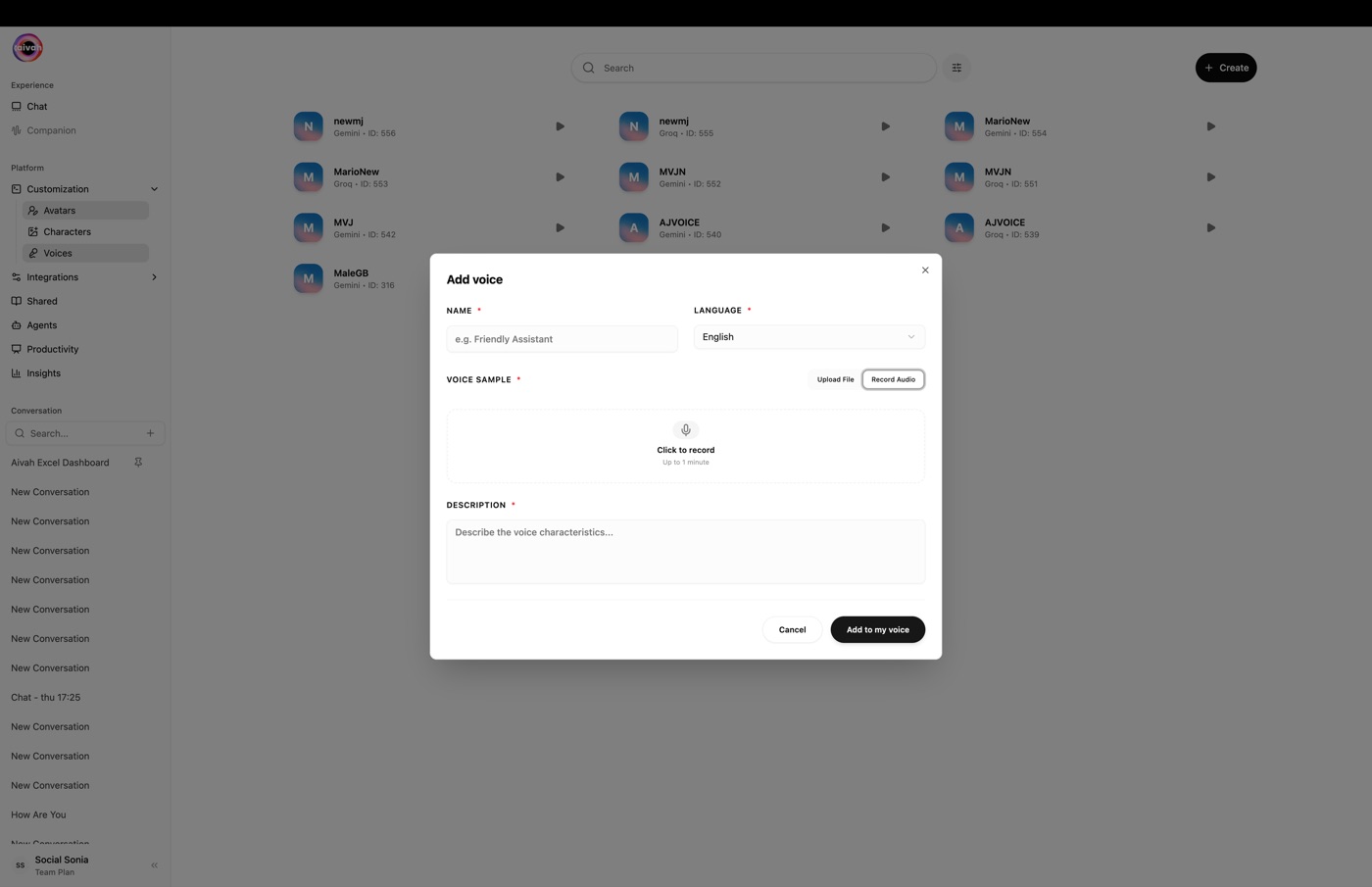
Record Audio mode – capture up to 1 minute right in the browser - Name and describe the voice
Give the voice a short, descriptive name (for example Sarah – Casual) and add a description of the voice characteristics. This is what appears in pickers throughout Aivah.
- Add to my voice
Click Add to my voice. The new voice enters processing. Once processed, it shows up in the list and can be selected wherever a voice can be picked.
Use a voice
Voices can be selected in three places:
- Chat composer pills – the voice pill in New chat or in the configuration pop-over for an existing conversation.
- Preferences modal (palette icon in Avatar chat) – set the voice your avatar speaks with.
- Integration configuration – Telephony and Channels both expose a voice picker so calls or channel messages use the right voice.
Default voice
Mark a voice as your default to pre-fill the picker every time you start a new conversation. You can change the default at any time from the Voices page.
Best practices
- Cleanly trim recordings – background noise during the training clip is reproduced in the clone.
- Match accent and language – clone voices reproduce the linguistic patterns of the source.
- Test before publishing – preview the clone in the Playground before assigning it to a shared agent or a phone number.
- Pair voice and LLM – some voice families are only available with specific LLM providers; if a voice disappears, switch the LLM back to the matching family.