
Channels (Slack & WhatsApp)
Connect your agent to Slack and WhatsApp so it responds in your team's chat tools
Channels
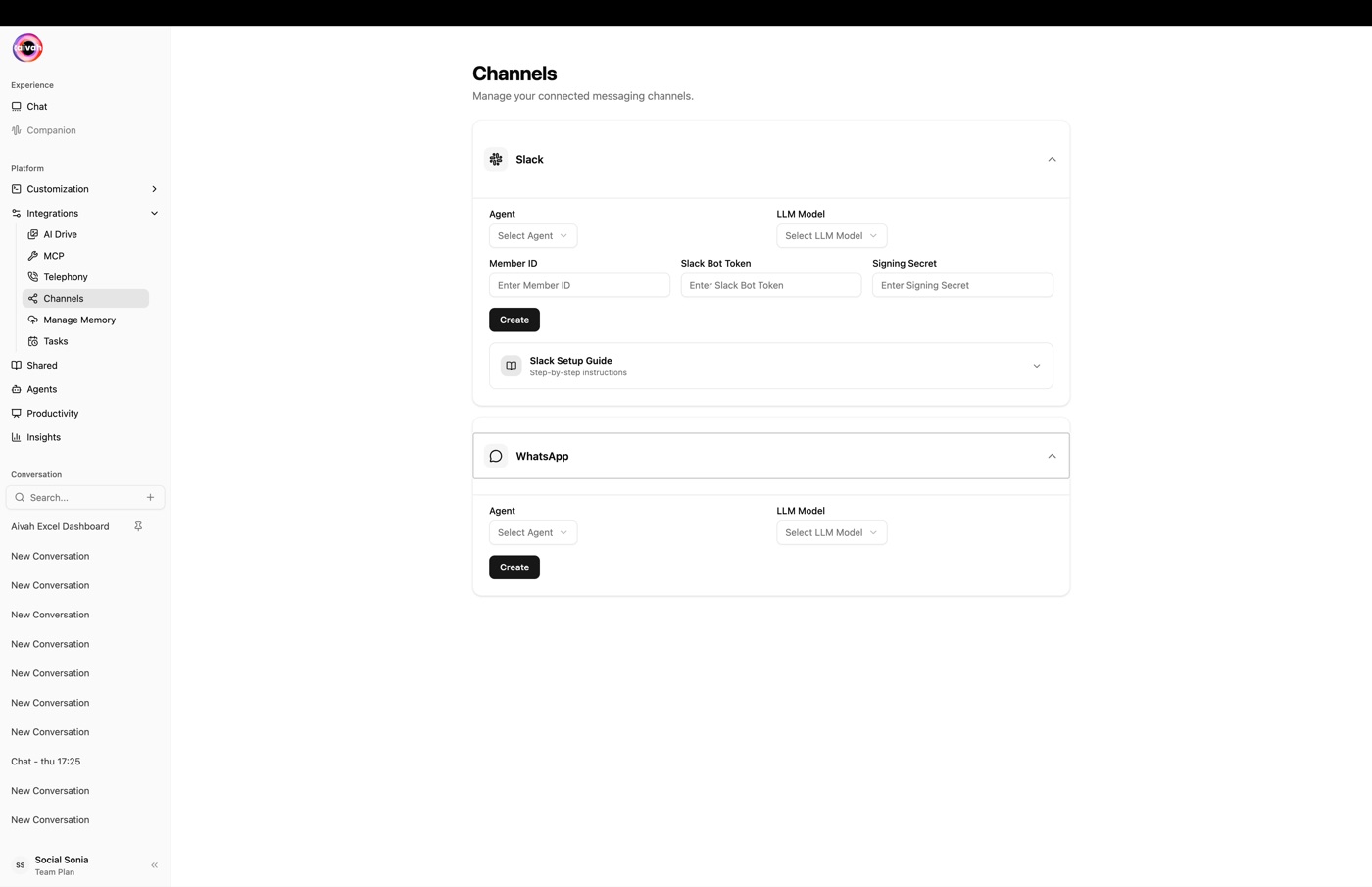
Aivah's Channels integration (Side nav → Integrations → Channels, or /integrations/channels) lets an agent respond directly inside the chat tools your audience already uses. Two channels are supported out of the box: Slack and WhatsApp.
Each channel appears as a collapsible card. Inside every card you select:
- Agent – which agent will respond on that channel
- LLM model – the model pinned to that channel for consistent behaviour
Toggle the Active switch to enable or disable a channel without losing its configuration.
Slack
The Slack card includes a Slack Setup Guide that expands to step-by-step instructions. The configuration is a one-time exchange of three values between Slack and Aivah.
What you'll need from Slack
| Value | Where to find it |
|---|---|
| Member ID | Your Slack profile page (under the kebab menu → Copy member ID) |
| Bot Token | Slack app → OAuth & Permissions → Install App page, after installing to a workspace |
| Signing Secret | Slack app → Basic Information → App Credentials |
Setup steps
- Create the Slack app
Go to https://api.slack.com/apps and click Create New App → From an app manifest. Paste the App Manifest copied from the Slack card in Aivah.
The manifest pre-configures the bot scopes, the slash command
/aivah, event subscriptions, and the request URL that points back to Aivah. - Install the app to your workspace
Inside the new Slack app, open Install App and authorize installation. Slack issues the Bot Token here.
- Configure Aivah
Back in the Slack card on the Channels page, paste:
- Member ID – your Slack profile member id
- Bot Token – from Slack's Install App page
- Signing Secret – from Slack's Basic Information → App Credentials
Save the configuration.
- Invite the bot to a channel
In any Slack channel run
/invite @aivah-bot. The bot only listens in channels it has been explicitly invited to. - Talk to the agent
Use
/aivahfollowed by your question. The bot replies in-thread with the same intelligence as the agent in the Playground. - Toggle Active
Flip the Active switch in the Slack card. The channel is now live.
Troubleshooting Slack
- Bot does not respond – confirm the bot was invited (
/invite @aivah-bot), the Active toggle is on in Aivah, and the Bot Token / Signing Secret you pasted match what Slack shows. Re-install the Slack app if you regenerated tokens. - Manifest changes – if you edit the manifest after install, you'll be prompted to re-install. Repeat the steps above to refresh the tokens.
WhatsApp uses QR pairing – there are no tokens to copy. The Aivah card walks you through the handshake:
- Click Connect
The panel switches to Connecting… and renders a QR code.
- Pair your phone
On your phone open WhatsApp → Linked Devices → Link a device → scan the QR.
- Confirm pairing
The status flips to Connected and the card shows the linked phone number.
- Manage the link
Two extra controls appear once paired:
- Refresh – fetches a new QR if the current one expires
- Power – disconnects the linked phone
Aivah polls WhatsApp pairing every 2 seconds during the connection flow, so the status updates almost in real time. If the QR expires before you scan it, just hit Refresh to mint a new one.
Troubleshooting WhatsApp
- QR expired – click Refresh in the WhatsApp panel; a fresh QR is generated and the status returns to qr_ready.
- Phone shows "device removed" – use Power to disconnect on the Aivah side, then re-run the Connect flow.
- Messages stop arriving – verify the linked phone is online and on a recent WhatsApp version. Pairings expire if the device stays offline for a long time.
Per-channel agent & model
Both Slack and WhatsApp cards expose:
- Agent – select any agent in your workspace, including knowledge-base and presenter agents.
- LLM model – pin a model so the channel always speaks with the same brain.
You can run different agents on different channels (for example a sales agent on WhatsApp and an internal helper on Slack) without affecting the agents themselves.
Related guides
- Agents
- Twilio Phone Setup for telephony
- MCP Tools for extending the agent with external apps