
Tasks (Cron & Heartbeat)
Scheduled cron jobs and heartbeat-based background tasks created by your agent
Tasks
Aivah's Tasks page (Side nav → Integrations → Tasks, or /integrations/tasks) is where every scheduled or recurring job created by you or your AI agent lives. Anything from "remind me on Monday at 9 AM" to "ping me if the API is down" shows up here.
The page is split into two tabs, each with badge counters and a Refresh button.
Cron Jobs
Scheduled jobs that run on a cron expression.
Each row shows:
- The cron expression and the human-readable next-run time
- The action the job will take
- The channel the job runs on (Web, Slack, WhatsApp, etc.)
- Inline Run now and Delete controls
Use Cron Jobs for any recurring action you want the agent to take on a schedule – sending a weekly summary, opening a daily standup thread, refreshing data sources, posting reminders, etc.
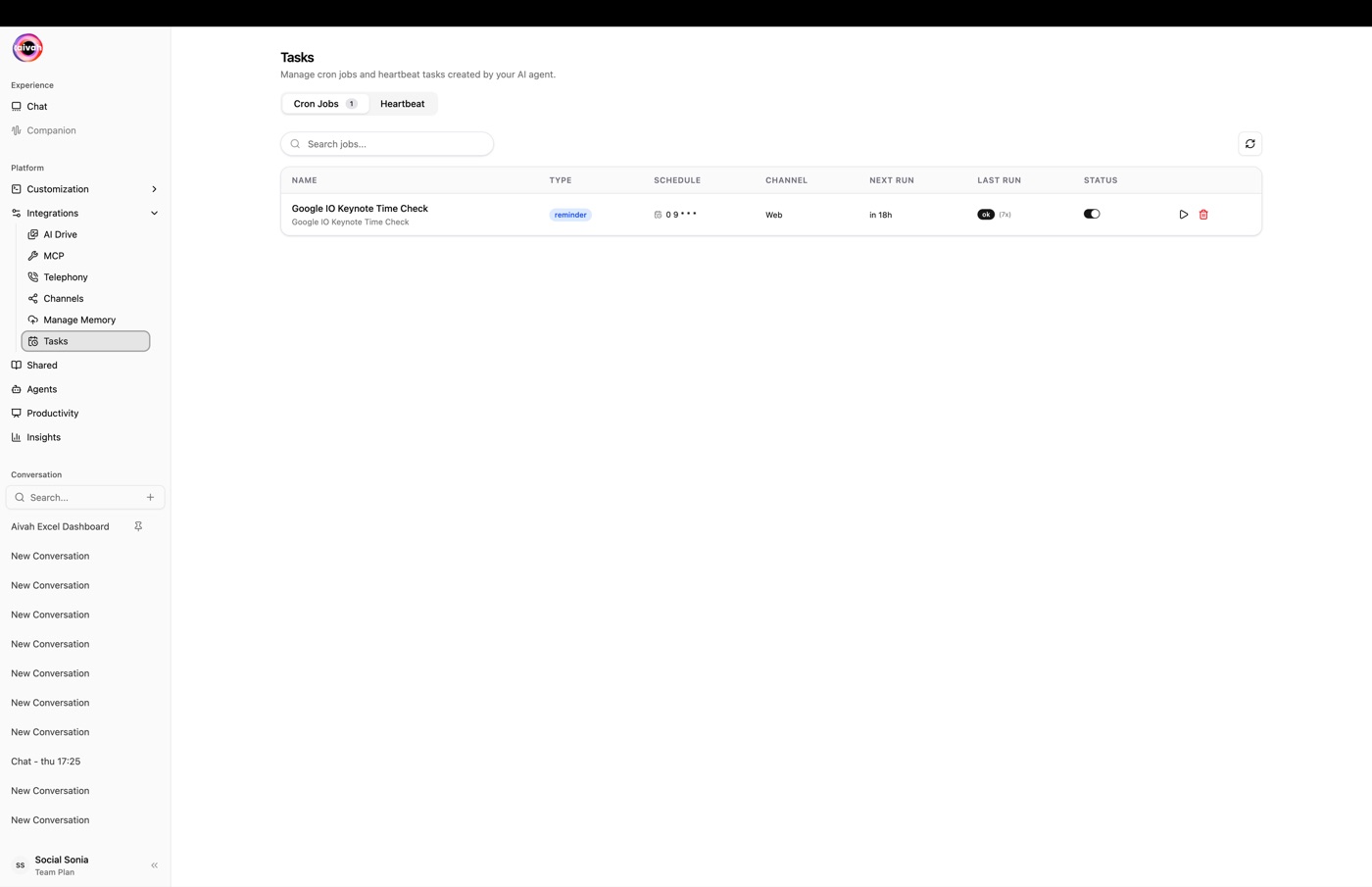
Manage cron jobs
- Run now – executes the job immediately without changing its schedule. Useful for verifying that the action works.
- Delete – removes the job permanently. The agent will no longer trigger it.
- Refresh – re-fetches the list so freshly created jobs appear.
Heartbeat
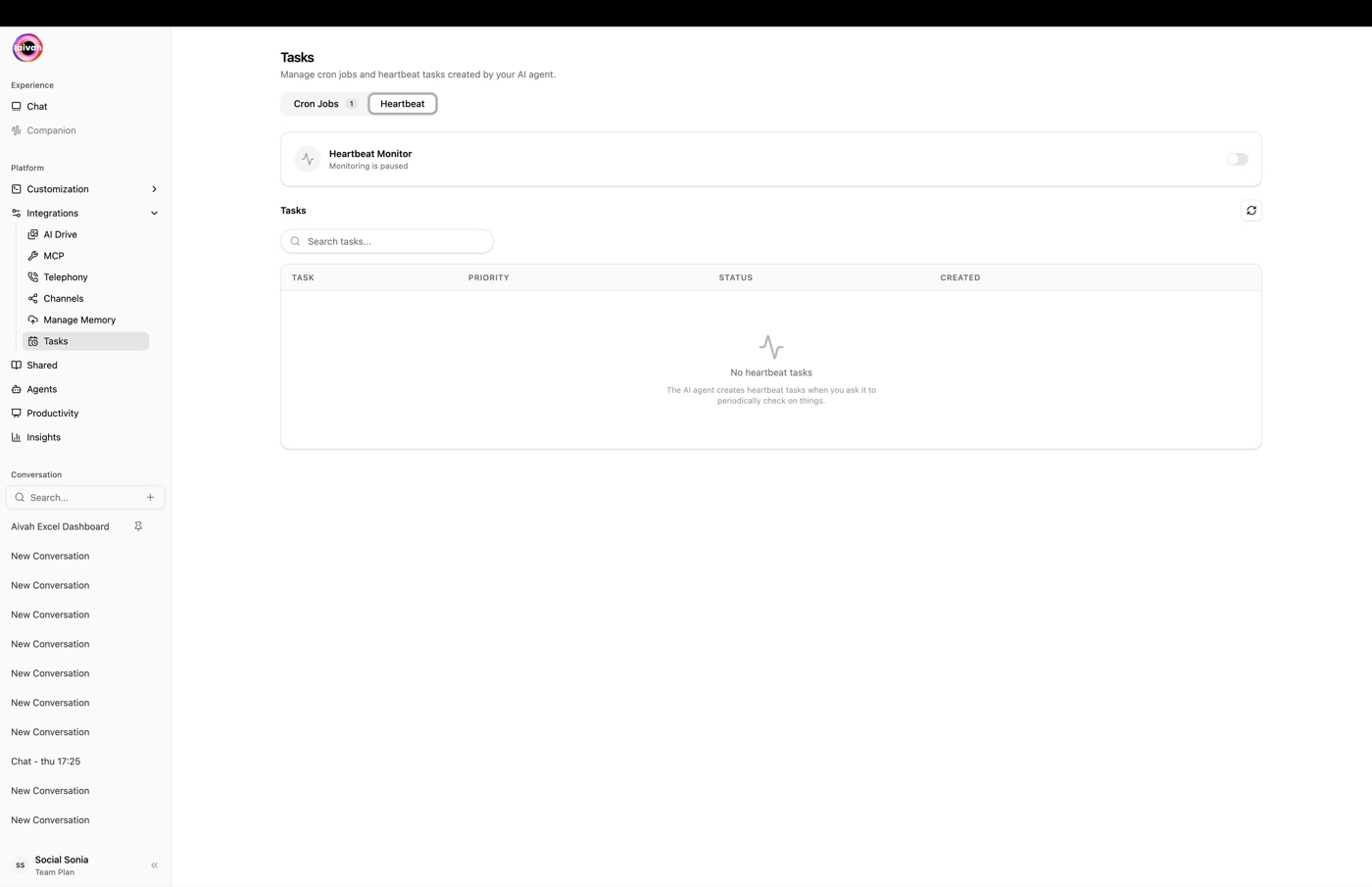
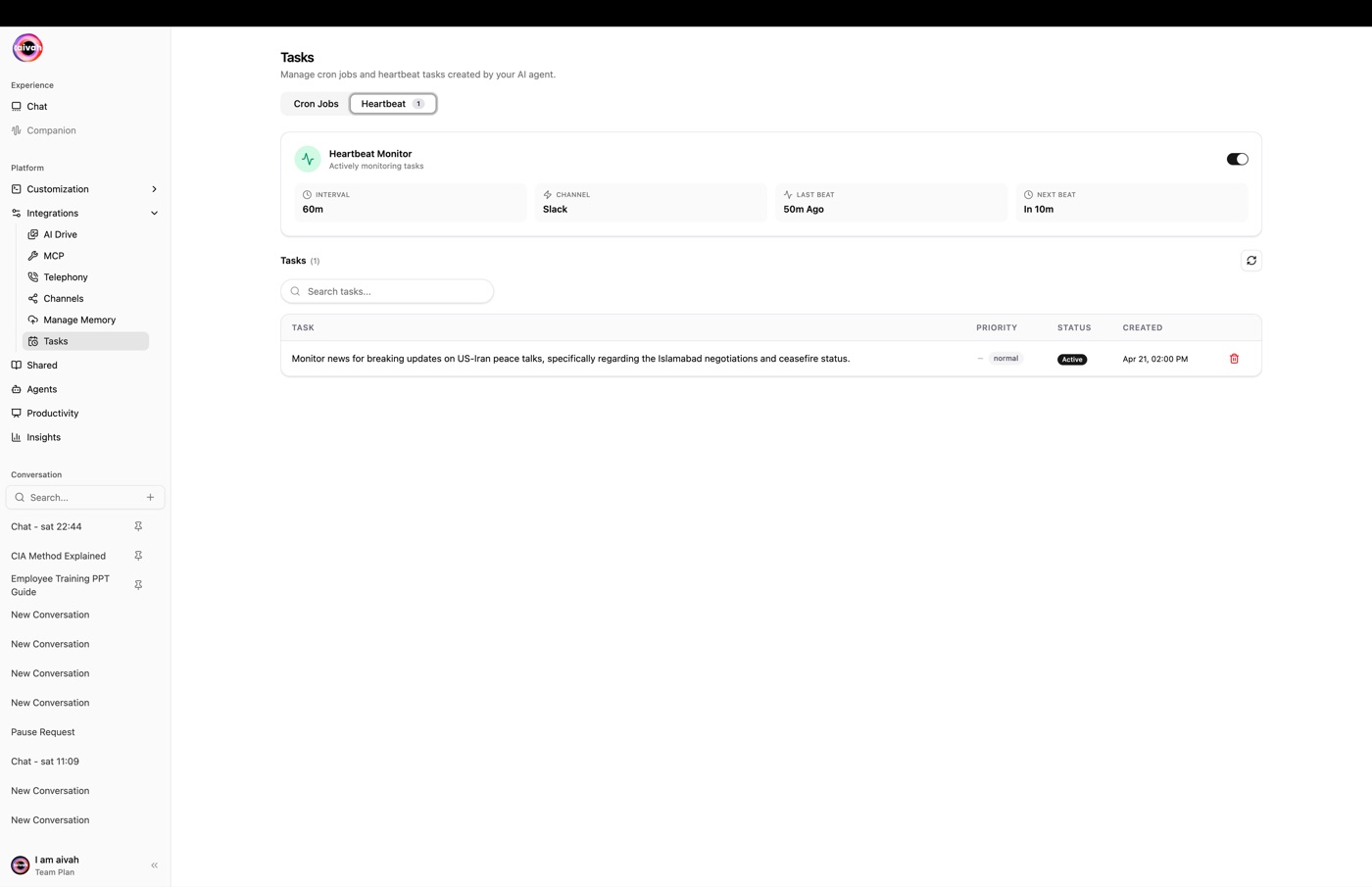
Background tasks that need a regular heartbeat to remain healthy. If the heartbeat stops coming in, the task is flagged so you can intervene.
The panel shows:
- A Heartbeat Monitor card with the interval, channel, last beat, and next beat
- A list of every heartbeat task with its priority, status, and creation timestamp
Heartbeats are ideal for long-running monitors and watch-style integrations – think uptime checks, queue depth monitors, or external service health pings.
How tasks are created
Tasks generally appear here in one of three ways:
- You ask the agent – natural language requests like "remind me to send the weekly report every Friday at 9 AM" create a cron job automatically.
- An MCP tool returns a schedule – some MCP integrations (Calendar, Linear, etc.) can schedule follow-ups that surface as cron jobs.
- You configure a heartbeat-style monitor – longer-running integrations are wired up via the heartbeat configuration card.
Workflow
- Open Tasks
Navigate to Integrations → Tasks and pick the tab you want.
- Inspect status
Use the badge counters to see how many jobs exist. Check timestamps to spot anything misbehaving.
- Run a quick verification
For cron jobs, hit Run now to confirm the action still works after a code or content change.
- Clean up
Use Delete on jobs you no longer need, then Refresh to confirm they're gone.
Troubleshooting
- Job didn't run on time – use Run now to confirm the action itself still works, then double-check the cron expression and the agent's MCP tool access.
- Heartbeat stopped – inspect the last heartbeat timestamp, then check the upstream service that's supposed to be sending the heartbeat.
- List looks stale – hit Refresh at the top of the tab to re-fetch.