 Help Center
This guide is for people who are allowed to connect company services to Aivah. You will connect one service, allow only the actions an AI employee needs, and verify the connection in a private conversation before anyone depends on it.
Before you begin
Prepare:
- The service and account your organization has approved.
- Permission to connect that account and approve actions.
- One low-risk action you can use for a controlled test.
- Instructions that tell the AI employee when to ask for confirmation.
If several sign-in methods are offered, use the method approved by your organization.
Steps
1. Open Integrations → MCP
MCP is the workspace label for connected outside tools and their allowed actions. Search for the service you need or browse the services shown for your account.
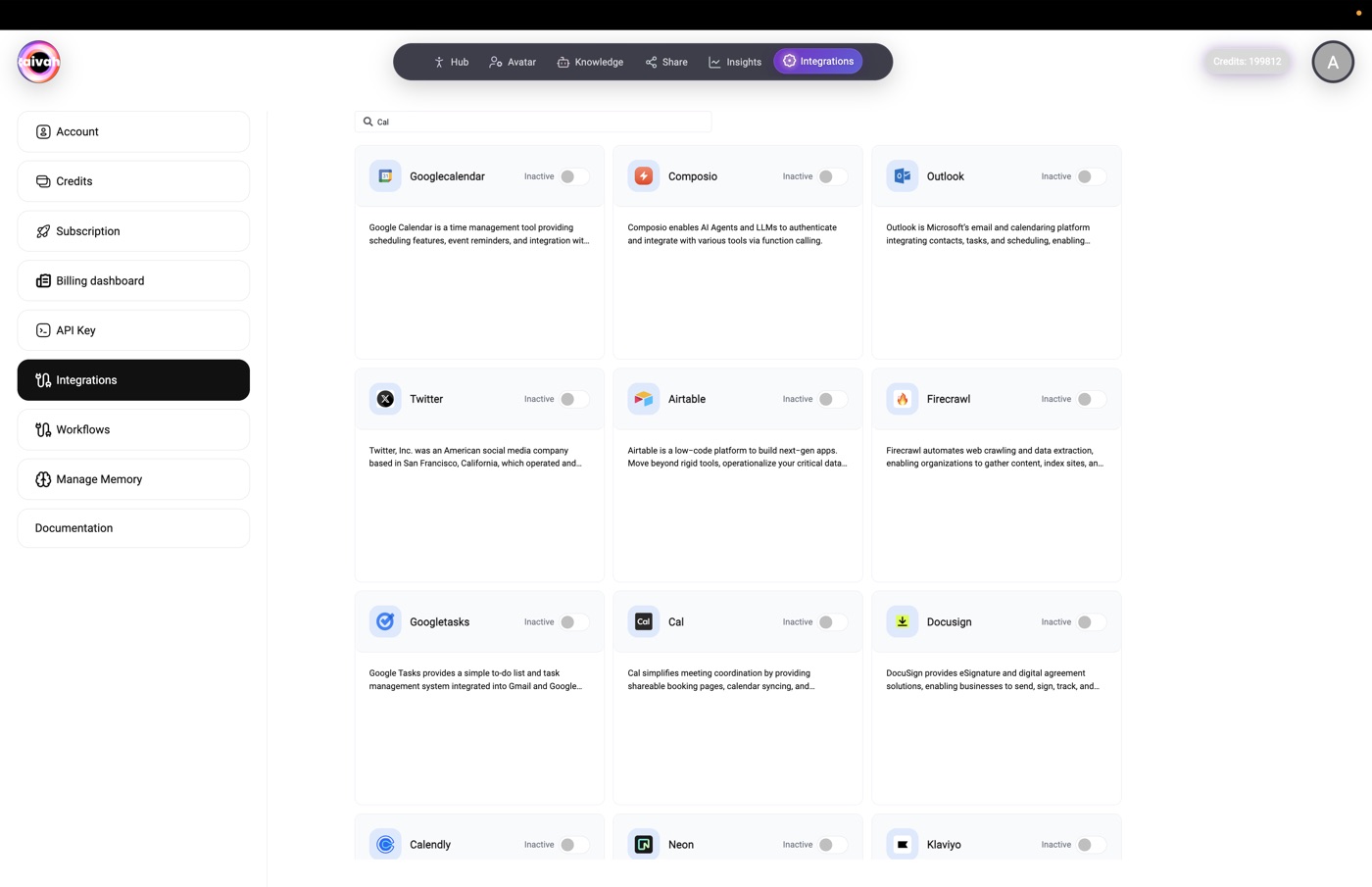
2. Open the correct service
Open its details and check the service name before continuing. The services and actions shown can vary by account and provider.
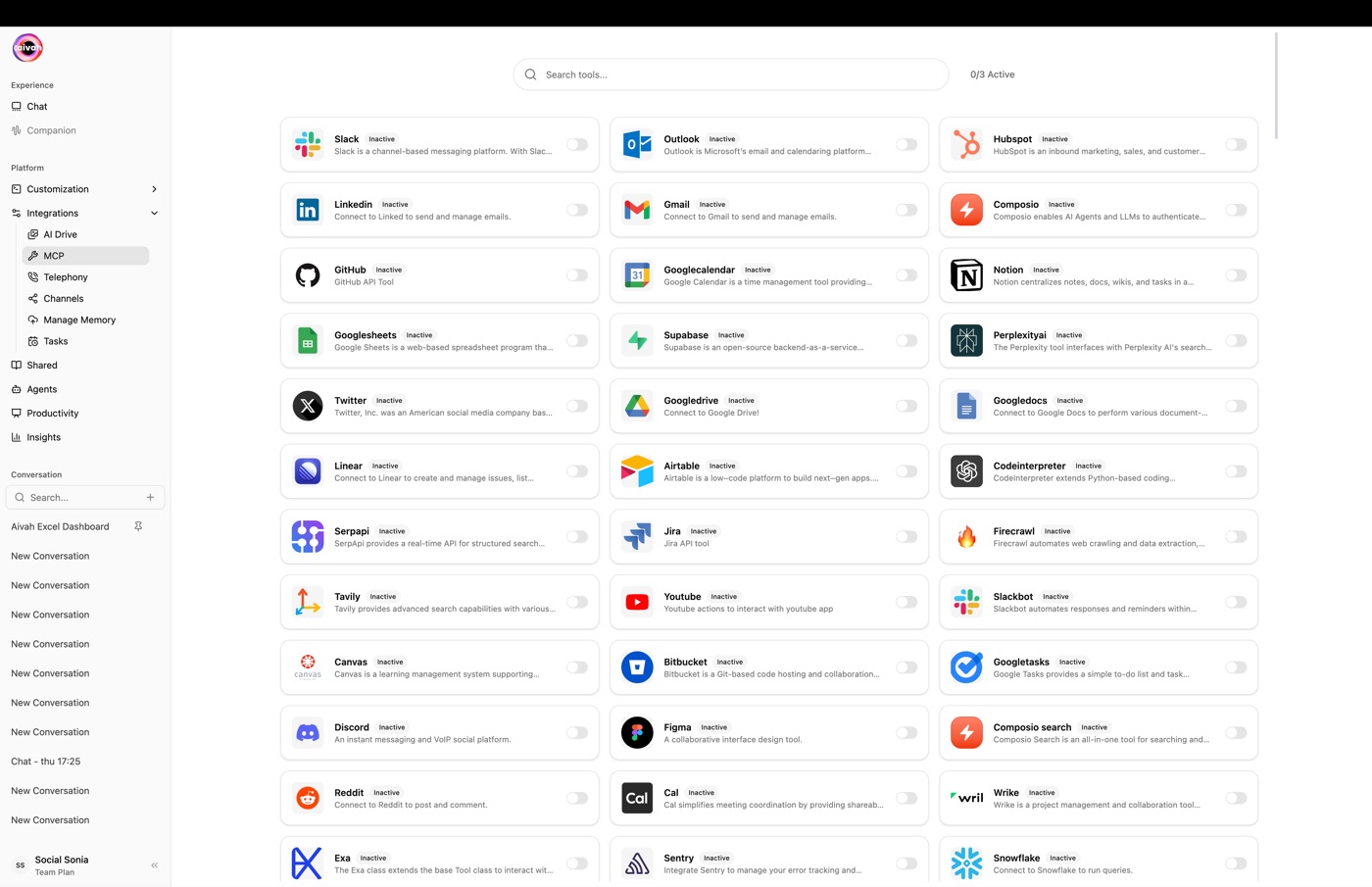
3. Choose the smallest useful action set
Allow only the actions required for the employee's job. Do not approve every available action by default.
For any action that sends a message, creates or changes a record, books something, or otherwise changes outside information, add an instruction that requires confirmation before completion.
4. Connect the correct account
Choose the connect action, complete the outside service's sign-in and approval steps, and return to Aivah. Read the requested access before approving it.
5. Confirm the connection is active
Check the service's visible connection state and selected actions. If the screen does not show an active connection, do not assume it succeeded.
6. Test one safe action privately
Open the Playground, select the intended Agent, and test one low-risk action with non-sensitive information. Confirm both the result in Aivah and the result in the outside service.
Expected result
The intended service account shows as connected, only the required actions are enabled, and the controlled test produces the expected result without exposing private values.
Status meanings
- Active or Connected, when shown, means Aivah currently presents the service as connected.
- Any other state should be handled using the guidance displayed on that service's screen. This guide does not define provider-specific error or expiry states.
Usage credit impact
The guide does not define a credit formula for connected actions. Review the balance and any usage information shown in your workspace before testing or expanding use. Do not estimate a per-action cost from this article.
Information stored or shared
A connected action can exchange information between Aivah and the outside service. What is exchanged depends on the service, the account you connect, the action you allow, and the request you make.
Use test information first. Do not include private customer records unless your organization has approved that use and the specific connected action.
Limits and permanent actions
- Available services, sign-in methods, and actions can vary.
- An outside action can have an immediate effect in another system.
- Aivah's connection screen does not replace your organization's access review in the outside service.
- Require confirmation and human review for deletion, unrestricted messaging, financial changes, or other irreversible decisions.
Common problems and recovery
| Problem | What to try |
|---|---|
| The service is not shown | Clear the search, confirm you are in Integrations → MCP, and check whether the service is available to your account. |
| Sign-in does not finish | Return to the service details, confirm you used the correct account and organization-approved method, then try the on-screen connection flow again. |
| The wrong account was connected | Stop testing, review the visible connection, and use the available connection controls before connecting the intended account. |
| An action is unavailable | Review the actions selected for that service. Enable only the missing action if it is approved and necessary. |
| The action fails in the Playground | Confirm the connection is active, verify the action is allowed, retry with non-sensitive test data, and check the outside service for the result. |
| The action has an unexpected effect | Stop further tests, preserve the relevant time and steps, review the outside service, and contact your administrator or Aivah support without sending secrets. |
Next step
Test the AI employee in the Playground, then review privacy, consent, and safe data handling before allowing public use.