 Help Center
Use this guide to work privately with an AI employee or test it before publishing. You will start with the intended employee and use only the conversation features needed for the task.
Before you begin
Confirm that the employee's preparation is completed. Prepare a focused first message and any supported file you need. For voice, check that your browser can use the intended microphone and speaker.
Steps
1. Start a clean conversation
Choose New chat. Select the employee from Agent, the available response option from Model, and a Voice when voice is needed. Confirm the appearance or Character where available, then wait for every choice to finish loading.
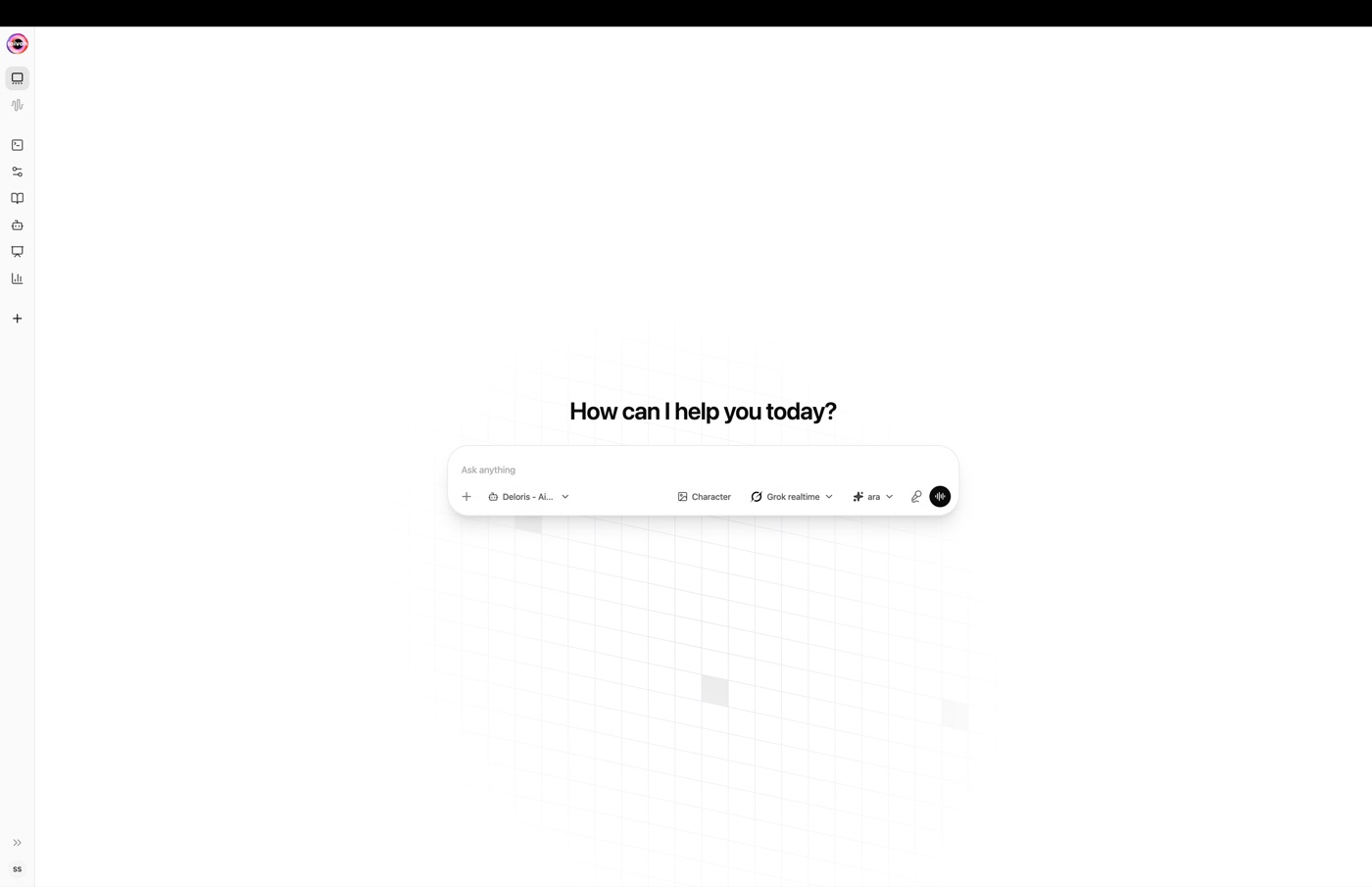
2. Send a useful first message
In the message box, include the audience, desired result, required format, and important boundaries. Press Enter to send. Use a new line when a longer request needs structure.
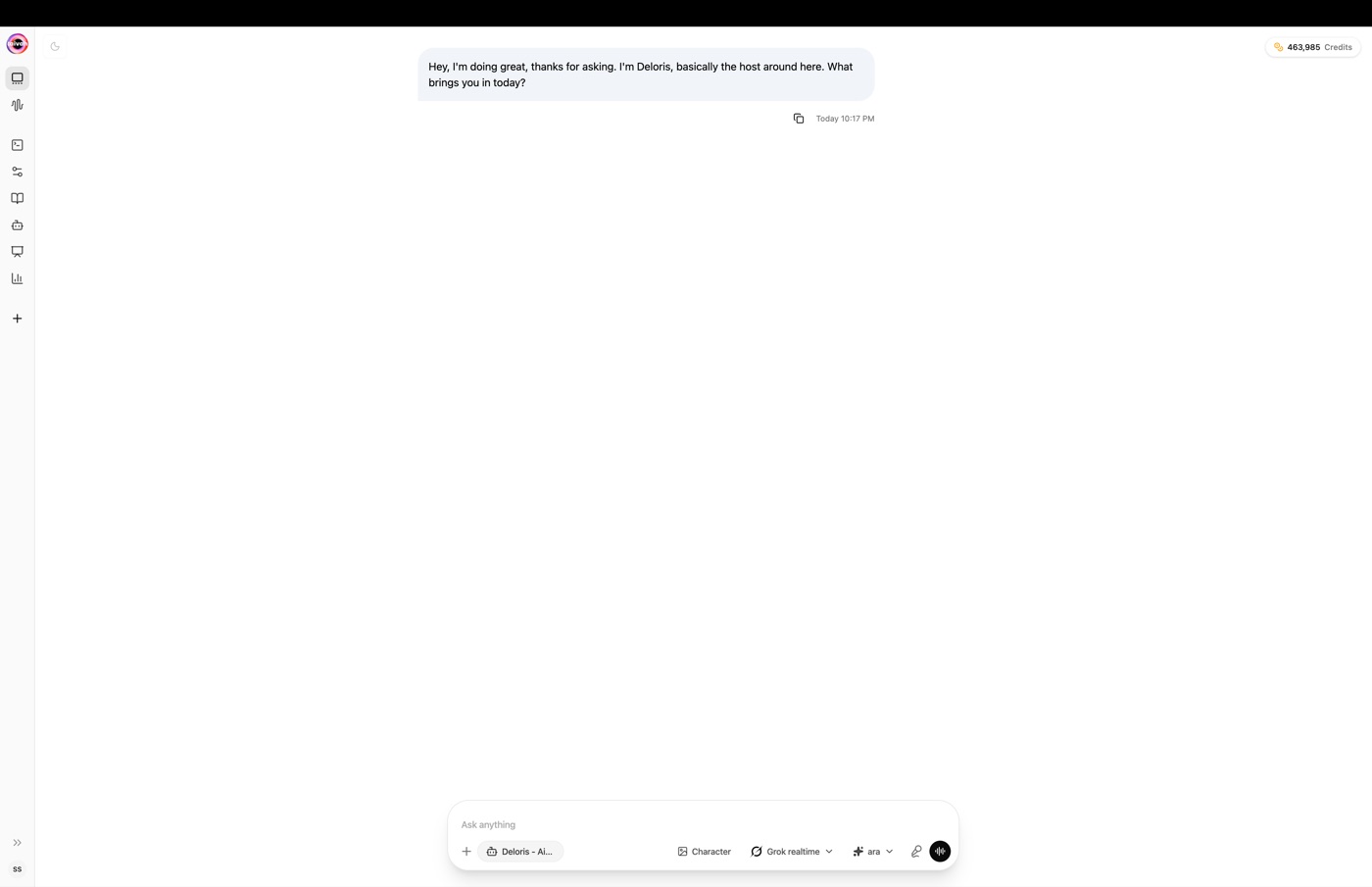
3. Attach one supported file
Use the attachment control and choose the supported file. Add a written instruction explaining exactly what the employee should do with it. For the most reliable result, send one file at a time and wait for the response before adding another.
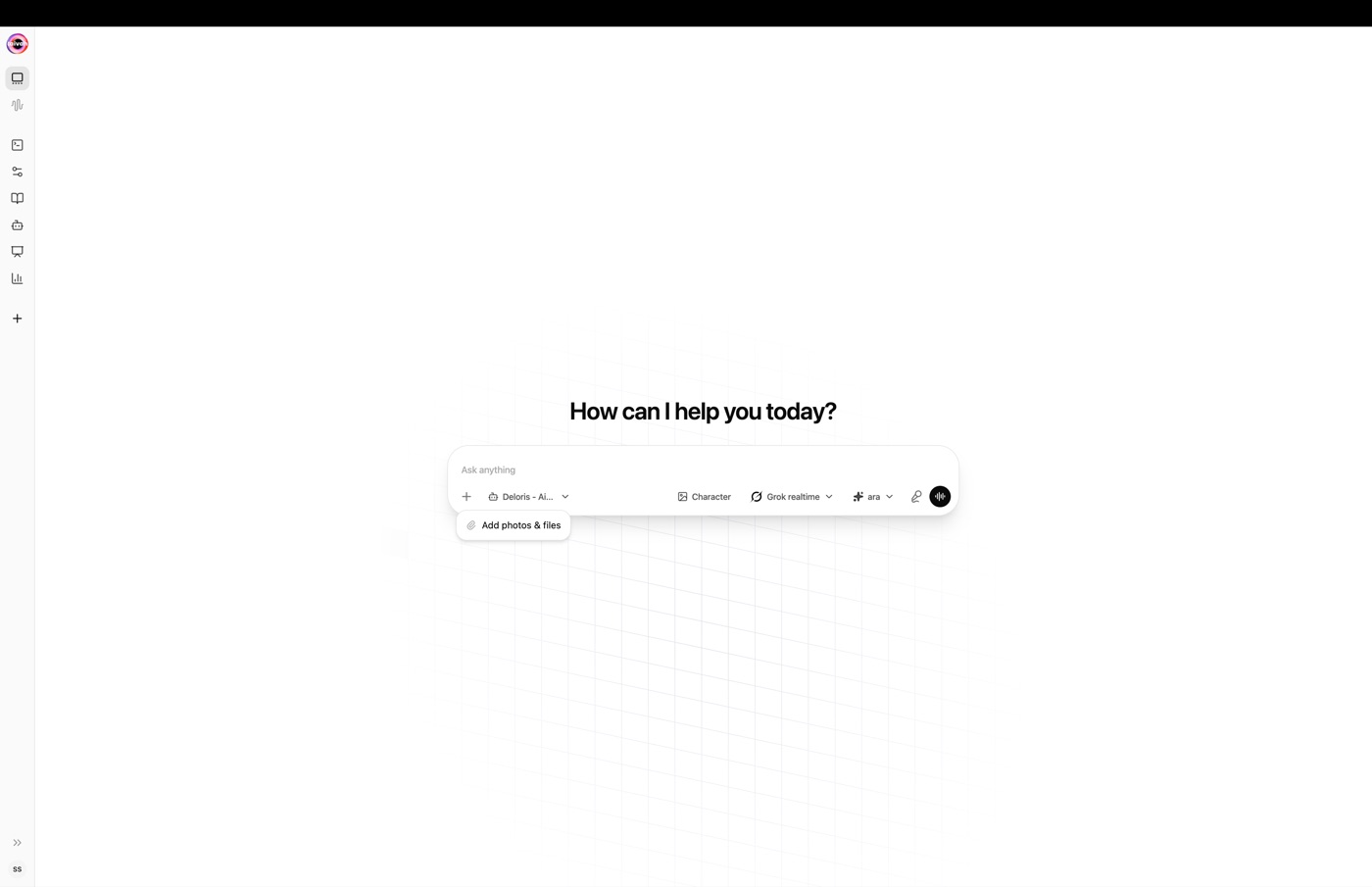
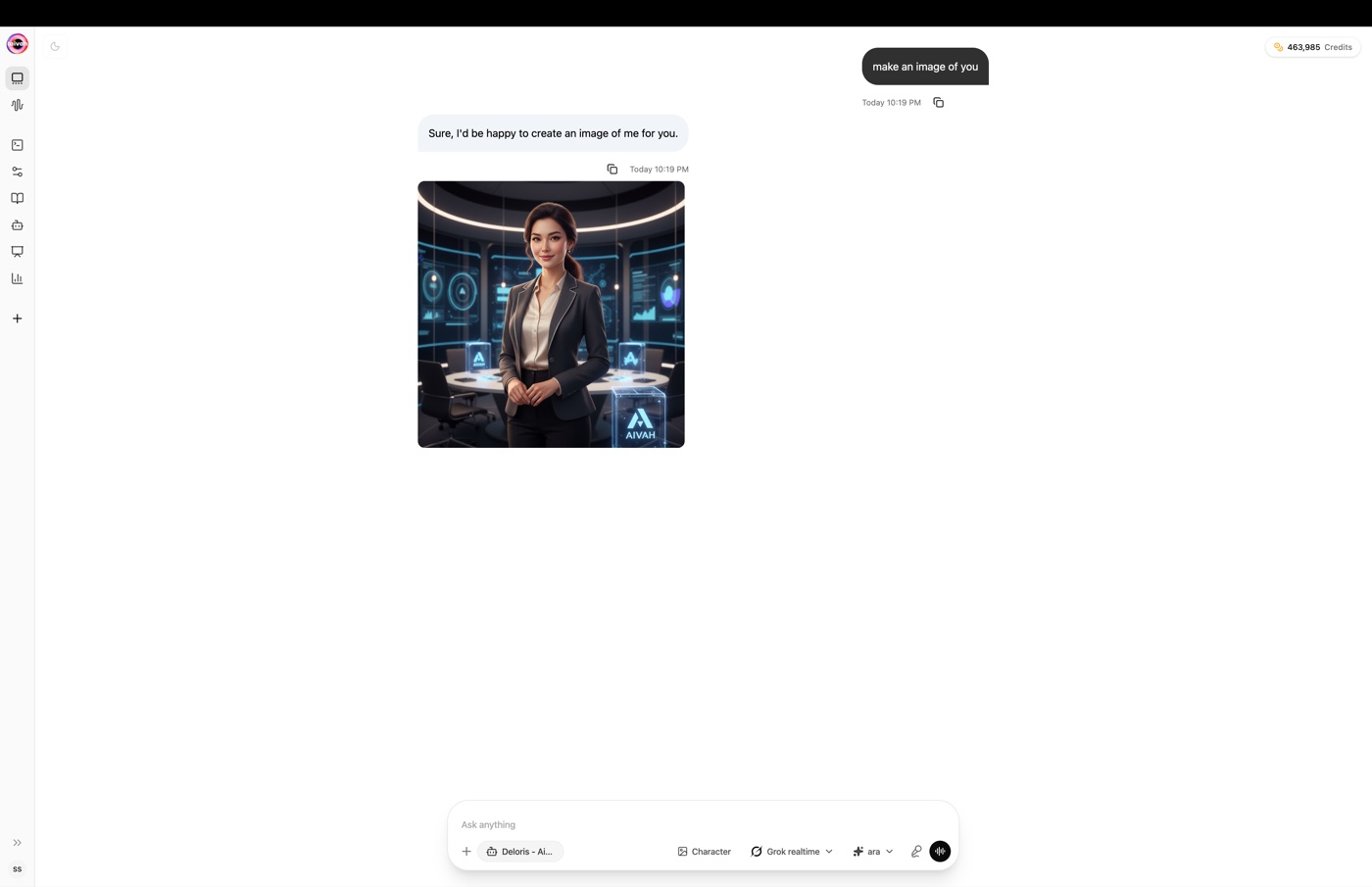
4. Create an image when the option is available
Choose the image option and describe the subject, setting, audience, orientation, mood, style, and any text that must appear exactly.
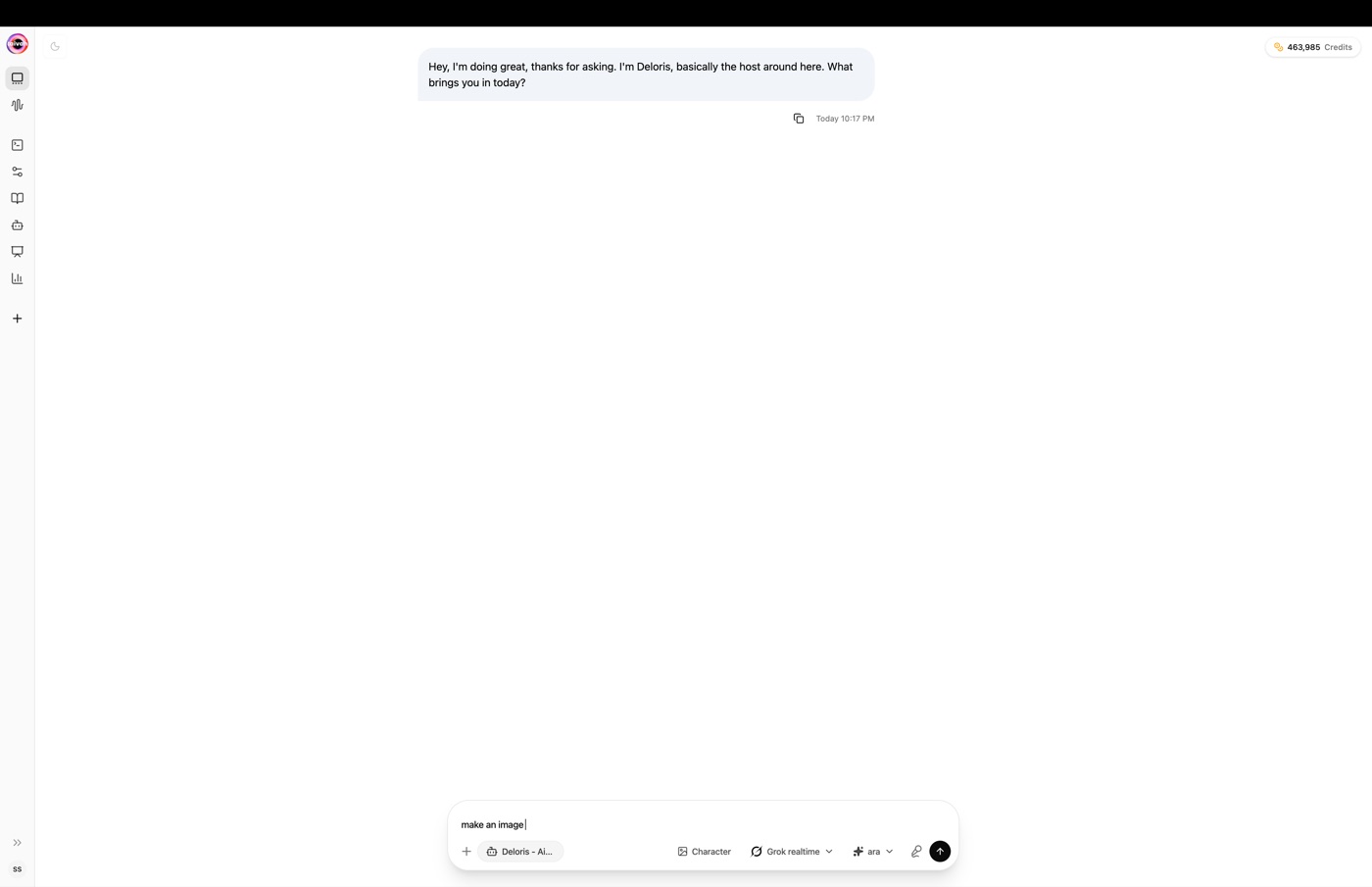
Wait for generation to finish before starting a duplicate. Generated work may also appear later in AI Drive.
5. Use voice
Choose the microphone or voice control and allow microphone access when asked. Speak clearly, wait for the employee to finish, and use headphones if speaker sound causes echo.
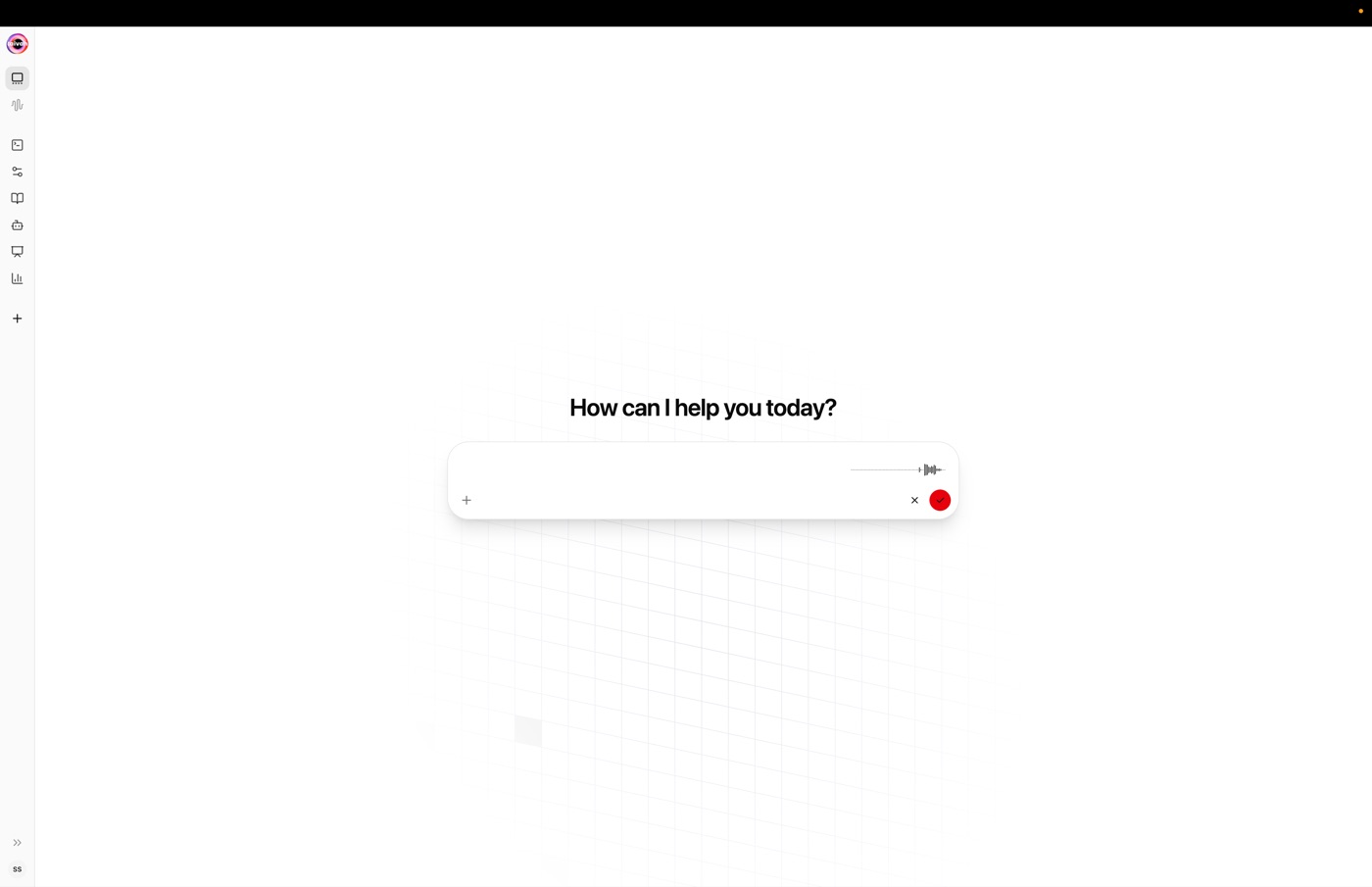
Close or mute another browser tab or application that is already using the microphone.
6. Use Avatar Chat when appearance matters
Avatar Chat combines an animated companion, scene, voice, and conversation panel. Talk or type, show or hide the transcript, and change appearance or scene in Preferences. The first visit may open Preferences if no appearance is selected.
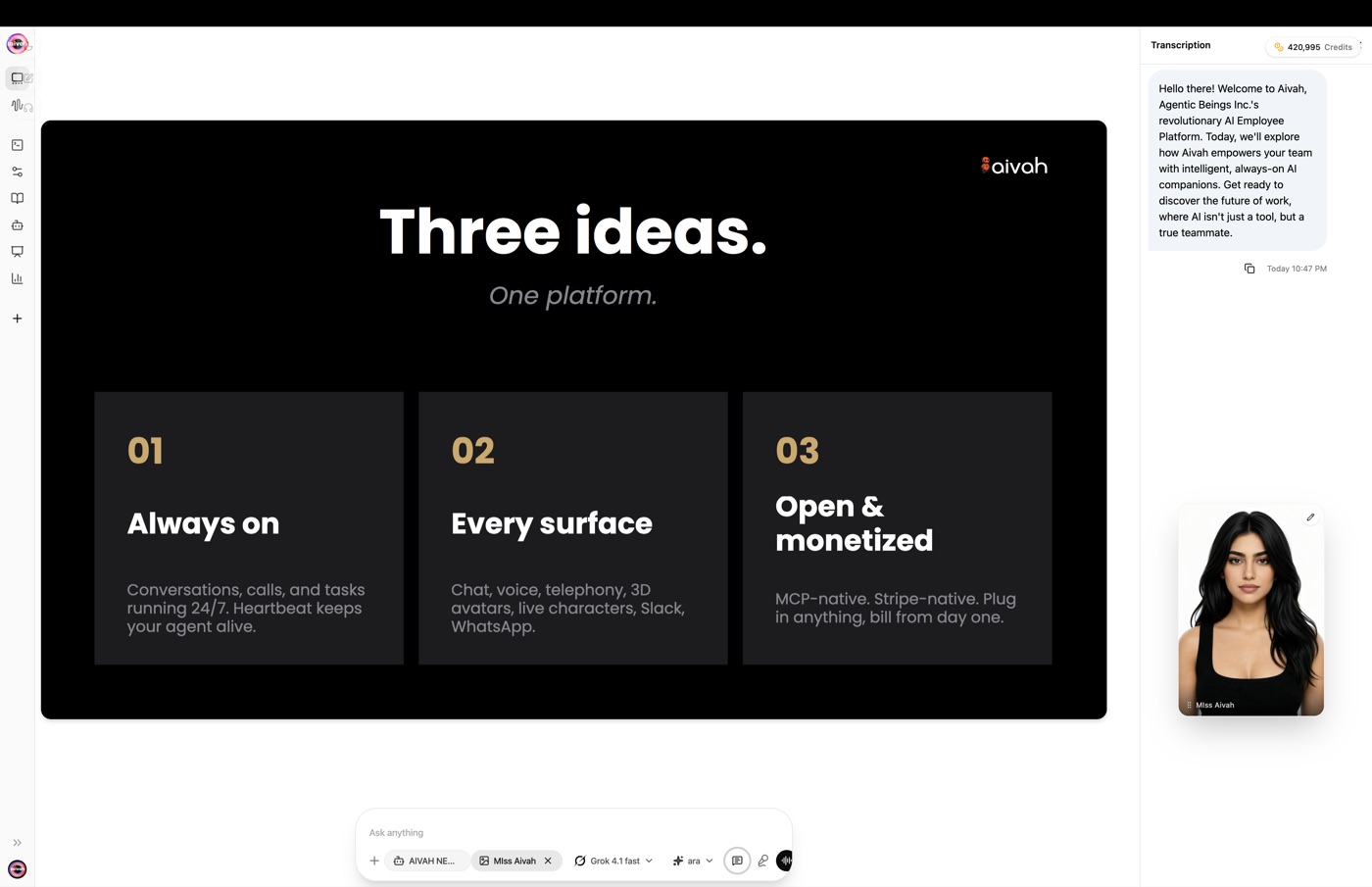
7. Test presentation controls when applicable
A presentation employee can guide slides or video while answering questions. Move through the material with the displayed presentation controls, show the transcript, and open related Quiz content when available.
8. Start fresh after changing employees
Changing Agent changes the selected employee for the conversation. For important testing, start a new conversation after switching so the employee, knowledge, generated content, and voice session are clearly separated.
Expected result
The conversation uses the intended Agent, response option, voice, and appearance. Messages and supported attachments receive a response, media finishes before another request begins, and presentation or Avatar Chat controls work as expected.
Status meanings
Loading, generating, or processing means the current response or media item is not ready. Ready or completed means you can review the result and continue testing. Failed or an error means the request needs attention; check the selected Agent, attachment, permission, and connection before trying again.
Usage credit impact
Conversations, voice, image creation, and other supported Playground activity may use usage credits. The guide does not provide a fixed per-action formula. Review the balance and any notices shown in your workspace before a long test session.
Information stored or shared
The conversation appears in your conversation history. Supported generated work may also appear in AI Drive. If the employee uses an approved connected action, the outside service can receive the information needed for that action. Use non-sensitive test data whenever possible.
Limits and permanent actions
Feature availability, response choices, voices, file guidance, and conversation controls can vary by account. A microphone, camera, or screen feature needs browser permission. Start a separate conversation after changing employees for important tests.
Deleting a conversation is permanent in the current workspace; manage deletion from the history only after confirming the name.
Common problems and recovery
- The wrong employee answers: start New chat, select the intended Agent, and resend the test.
- A file request fails: send one supported file with a written instruction and wait before adding another.
- The microphone does not work: allow browser access, close other apps using it, check the selected input, and refresh.
- Voice connects but no sound plays: check speaker volume, browser sound permission, the selected Voice, and other active audio sessions.
- The appearance is missing: open Preferences, choose an appearance and scene, and wait for loading.
- Generated work seems missing: check the conversation, the Productivity gallery, and AI Drive before generating a duplicate.
Next step
Learn to manage conversation history, or use Manage, test, and improve to record a full quality test.