 Help Center
This guide is for operators who manage work that already exists in Aivah. You will review a scheduled job or recurring check, confirm what it affects, and run, pause, or remove only the intended item.
Before you begin
- Know the job name, purpose, and outside service or channel it may affect.
- Confirm you are authorized to run, pause, or delete it.
- Check whether running it now could send a message or change information elsewhere.
- Record the visible status and next run before changing anything when your team needs an operational record.
Steps
1. Open Integrations → Tasks
The page contains:
- Cron for scheduled jobs.
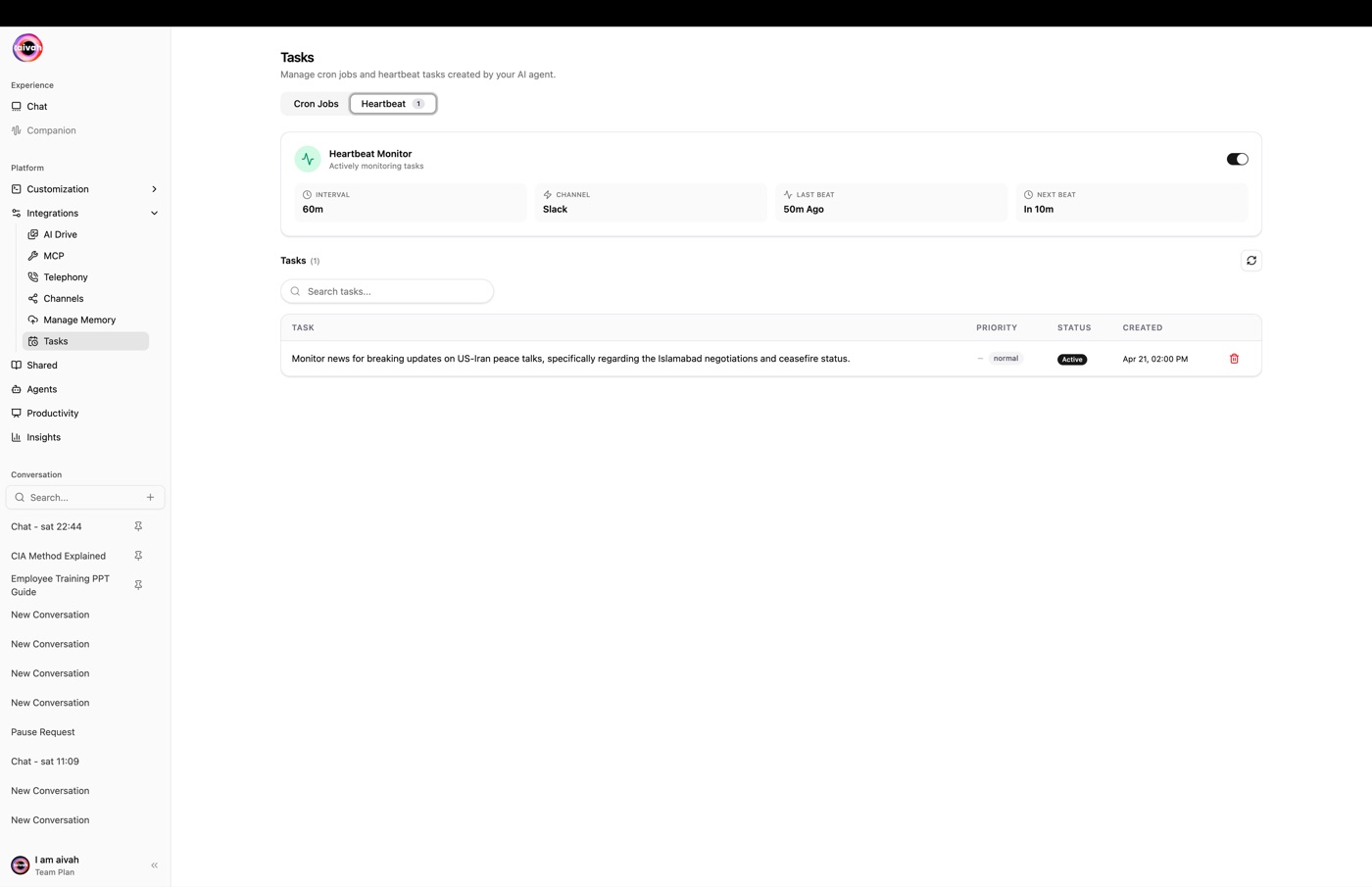
- Heartbeat for recurring checks and their health.
In plain language, these are scheduled jobs and regular checks.
2. Review Cron
Search for the intended job, then check its visible status and next run. Confirm the name and purpose before using any action.
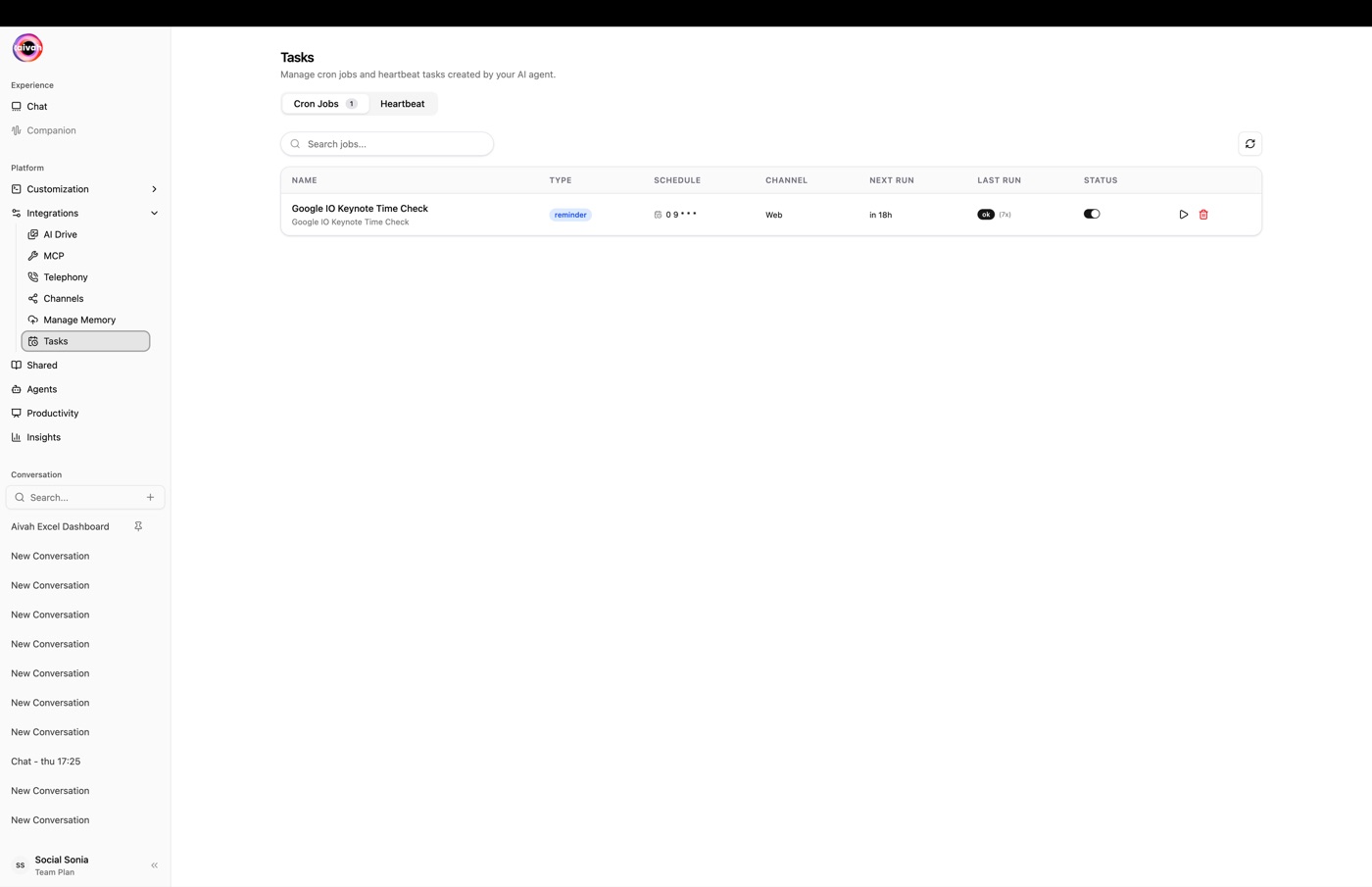
Depending on the item, you can turn it on or off, choose Run now, delete it, or refresh the list.
3. Review Heartbeat
Use the visible health information to review recurring checks. Refresh the list before deciding that a recent change or run is missing.
4. Run an existing job only when safe
Choose Run now only after confirming the job and its effect. Running a job can affect outside work immediately.
5. Turn a job on or off
Use the available control for the intended job, then refresh and confirm the visible state. This page manages existing work; it does not currently create or fully edit scheduled work.
6. Delete only after checking the impact
Confirm the job name, purpose, and downstream effect before deleting it. Refresh the list to confirm the current workspace view.
Expected result
The selected job or recurring check shows the intended state, any manual run has the expected result, and unrelated work remains unchanged.
Status meanings
- Cron groups scheduled jobs.
- Heartbeat groups recurring checks and their visible health.
- An on or off control changes whether the selected item is enabled in the current view.
- Exact item-specific health or failure labels are not defined in this guide; use the details shown for that item.
Usage credit impact
Running work can trigger supported activity, but this guide does not define a credit formula. Check your current workspace balance and the effect of the job before using Run now.
Information stored or shared
A scheduled job or recurring check can use a connected service or channel. Its run may send information or change outside work immediately. Review the job and its connected action before running it with real information.
Limits and permanent actions
- Tasks manages existing work; it does not currently create or fully edit scheduled work.
- Run now can have an immediate outside effect.
- Deleting removes the selected item from scheduled work; this guide does not establish an undo path.
- Pausing or deleting a job is not described here as reversing work it completed previously.
Common problems and recovery
| Problem | What to try |
|---|---|
| A job is missing | Clear the search, switch between Cron and Heartbeat, and choose Refresh. |
| The list looks stale | Choose Refresh, then check the visible status and next run again. |
| A run does not produce the expected result | Confirm the connected service and allowed action, then review the job's visible state before another controlled test. |
| A recurring check looks unhealthy | Review the visible health information and the outside service it depends on before changing the item. |
| The wrong job ran | Stop further manual runs, check the affected outside service, preserve the job name and approximate time, and contact an administrator or support without sending secrets. |
Next step
Review connected tools and safe actions, or return to memory and sessions.