 Help Center
Use this guide when you want a conversation with a visual Character. Chat keeps the Character beside the conversation. Companion places the visual experience in a larger scene.
Before you begin
- Create or select the AI employee that should answer.
- Confirm the Character and voice are approved for this audience.
- Use a quiet space if you plan to speak.
- Close confidential windows before enabling camera or screen sharing.
Steps
1. Start or open a conversation
Open Chat and start a new conversation when you need a clean test. Select the intended employee, model, and voice in the composer controls.
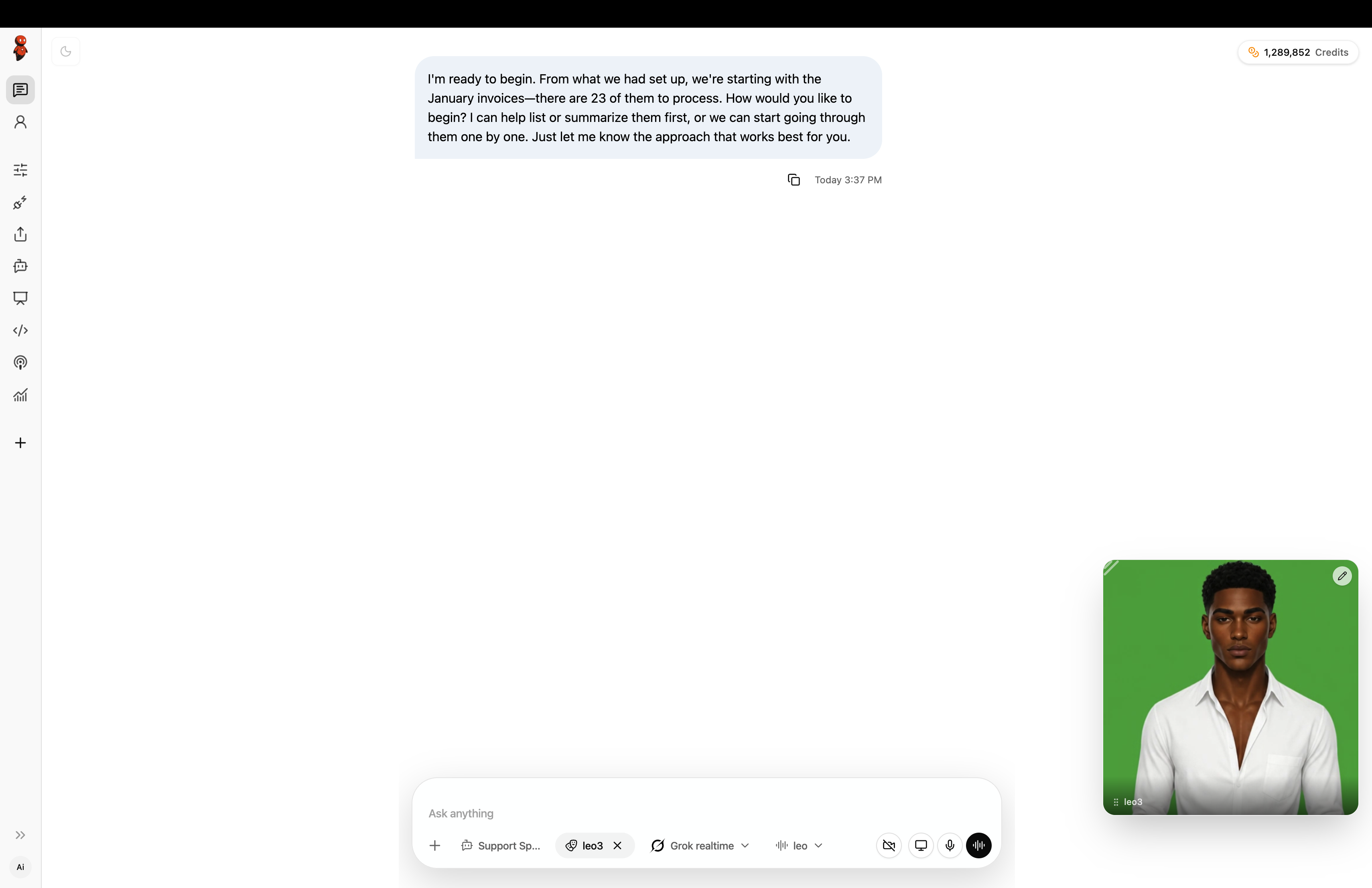
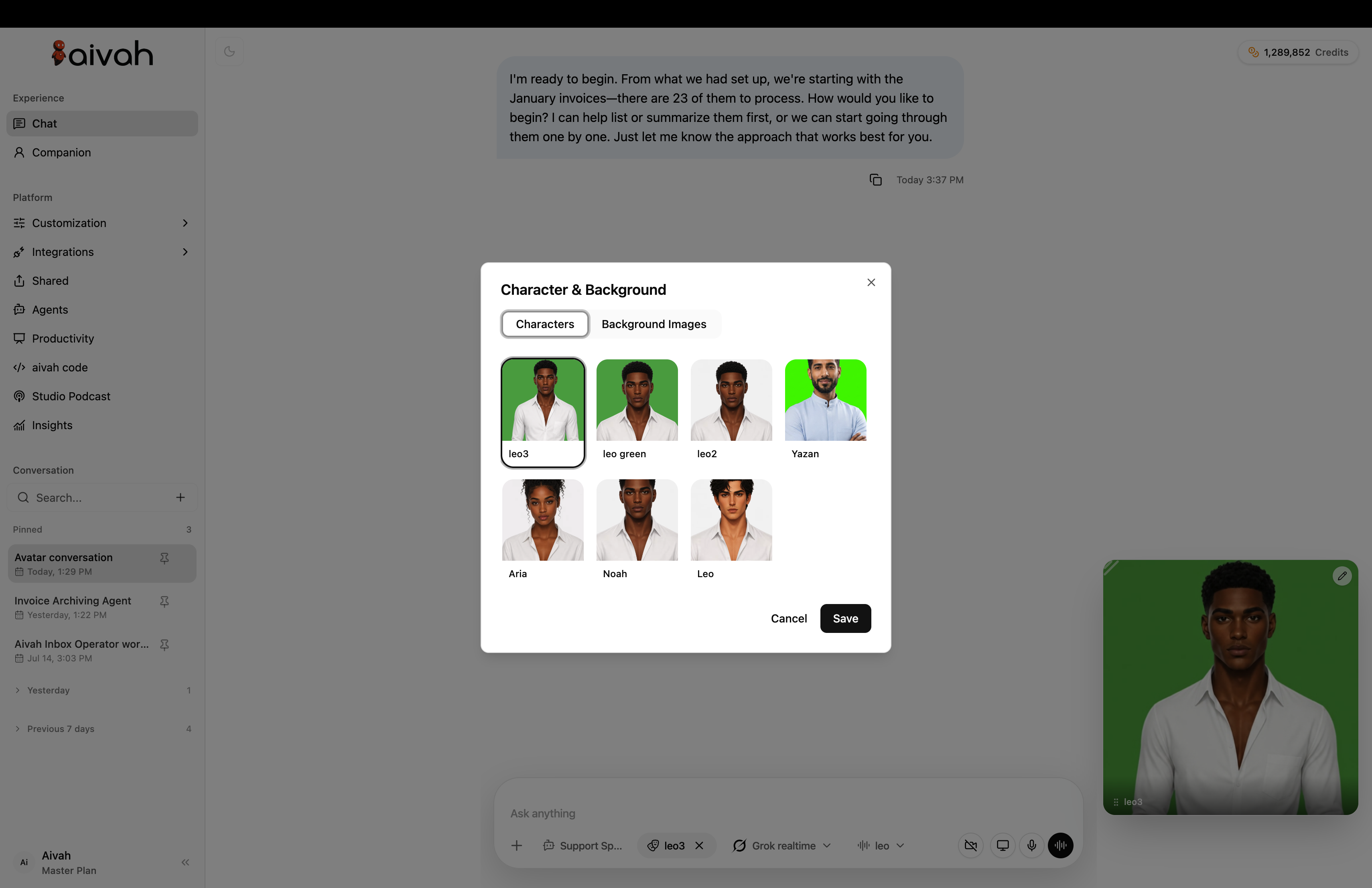
2. Choose the Character and background
Open the Character control, choose Characters or Background Images, select the approved option, then save.
3. Check the model and voice
Choose an available realtime model and a compatible voice. Availability can differ by account and model. Test pronunciation, pace, language, and interruption handling before using the experience with visitors.
4. Allow only the permissions you need
Allow microphone access for spoken conversation. Enable camera or screen sharing only when the task requires it. Browser permission controls can block the feature even when it is enabled in Aivah.
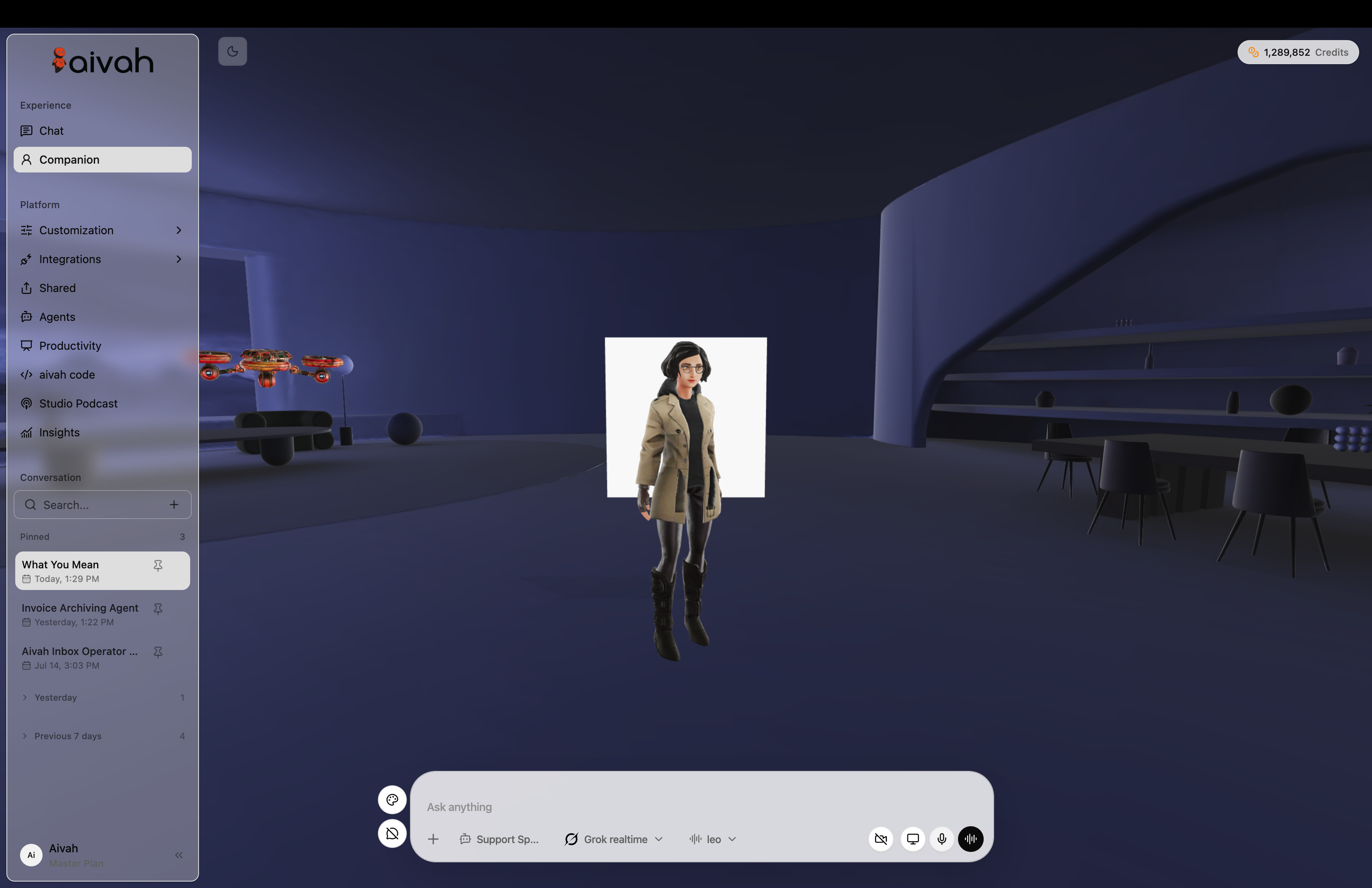
5. Use Companion for a larger visual scene
Open Companion when you want the Character presented in an immersive room. Confirm the selected employee, model, voice, and Character again because a different conversation can retain different choices.
6. Test the complete experience
Ask a normal question, interrupt once, switch language if required, and test the human handoff. Confirm that the visual experience does not imply a human is present when it is an AI employee.
Expected result
The correct employee answers with the selected Character and voice, browser permissions behave as expected, and the visual experience remains clear about its AI identity.
Status meanings
An active media control means its browser permission and device are in use. A muted or blocked control means the related input is unavailable. A ready Character can be selected for conversation; a failed visual or voice request needs another test or configuration review.
Usage credit impact
Realtime model, voice, visual, and conversation activity can use credits. Check the balance and usage notices shown in the workspace.
Privacy and consent
Microphone, camera, screen, and conversation content can contain personal information. Explain what is being used, collect only what the task needs, and stop or remove access when the visual session ends.
Information stored or shared
The conversation can store messages, selected employee and media preferences, and supported session records. Voice, camera, or screen content can be processed when the related control is active.
Limits and permanent actions
Character, voice, model, and Companion availability can vary by account and browser. Deleting a custom Character, voice, background, or conversation can be permanent. Confirm where it is used before removal.
Common problems and recovery
- The Character is not visible: confirm one is selected, refresh the conversation, and check browser graphics support.
- There is no voice: confirm the voice and realtime model are compatible, then check browser audio and microphone permissions.
- The wrong employee answers: start a new conversation and select the intended employee before speaking.
- Companion is slow: close other media-heavy tabs and test on a stable connection.
Next step
Review Characters, backgrounds, and voices or continue with Use Playground.